The simple setup
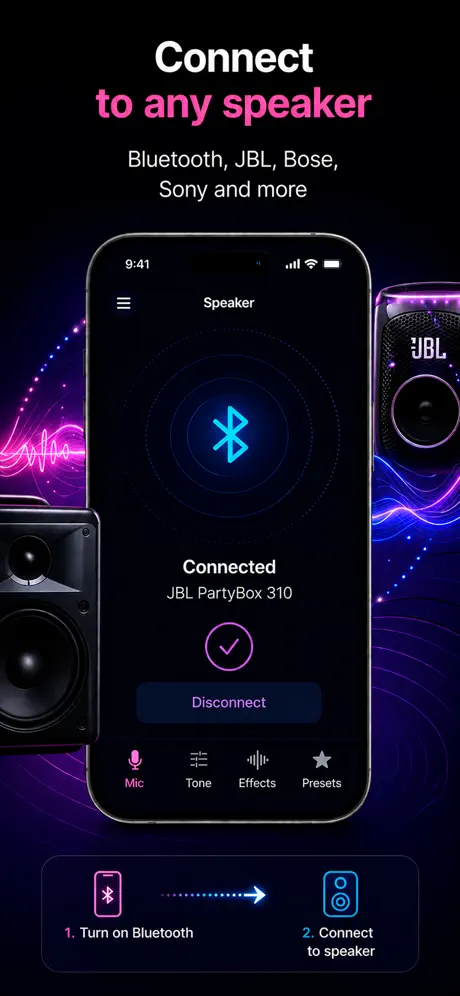
Connect the speaker first, then open Microphone App Bluetooth Live, allow microphone access, start live mode, and speak into the bottom of the iPhone. If the speaker is the active iOS output, your voice will play through that speaker.
- Pair the Bluetooth speaker, select AirPlay, or connect a cable.
- Open the app only after the output is connected.
- Start with low volume before speaking close to the phone.
- Move the speaker away from the iPhone to prevent feedback.
- Test delay before using the setup for karaoke, singing, or a live room.
Choose the speaker route
| Route | Good for | Main limitation |
|---|---|---|
| Bluetooth speaker | Speech, announcements, casual karaoke, portable use | Noticeable delay |
| AirPlay / HomePod | Home use, room playback, Apple speaker setups | Wi-Fi dependency and still some delay |
| Wired speaker | Singing, monitoring, rehearsals, timing-sensitive use | Needs adapter or cable |
| Built-in iPhone speaker | Testing the app quickly | Not loud enough for real amplification |
| Car speaker | Voice notes or fun tests while parked | Head units often add extra processing delay |
Bluetooth speaker setup
For most users, the phrase “iPhone mic to speaker” means a Bluetooth speaker. This works, but it is not the same as turning the speaker into a microphone. The iPhone remains the microphone; the Bluetooth device is only the output.
Bluetooth is convenient because there is no cable, but the audio has to be encoded, transmitted, decoded, and processed by the speaker. That is why your voice can feel slightly behind your mouth. For speech, the delay is often acceptable. For singing, it can feel strange very quickly.
If the speaker connects but you hear no voice
- Check that iPhone volume is controlling the Bluetooth speaker, not the built-in speaker.
- Restart live mode after pairing the speaker.
- Disconnect other headphones or AirPlay targets.
- Open Control Center and confirm the audio route.
- Raise speaker volume separately if the speaker has its own hardware buttons.
AirPlay and HomePod
AirPlay can be a better fit than classic Bluetooth in an Apple home setup. HomePod and AirPlay speakers use Wi-Fi instead of the classic Bluetooth A2DP path, so the behavior can be more stable in a room. It is still not a zero-latency stage monitor, but it can work well for speech, practice, and casual room playback.
Wired output is the low-delay answer
If the goal is to hear yourself naturally while speaking or singing, use a wired path. A USB-C or Lightning audio adapter into a powered speaker, mixer, or audio interface avoids most wireless delay. It is less elegant than Bluetooth, but it is the route that makes the setup feel closest to a real microphone.
Avoid feedback
Feedback happens when the speaker output re-enters the iPhone microphone and loops louder each time. The fix is physical before it is technical: lower the speaker, move it farther away, and point it away from the iPhone. Do this before raising mic gain or adding voice effects.
- Keep the speaker in front of the audience, not next to the phone.
- Hold the iPhone 15–20 cm from your mouth for speech.
- Start around 30–40% volume and raise gradually.
- Do not point the speaker back at the iPhone.
- Use a wired lavalier or external mic only after the basic route is stable.
What this setup cannot do
An iPhone cannot become a universal Bluetooth headset microphone for every speaker, computer, camera, game console, or car system. Standard Bluetooth speakers are designed to receive playback audio, not to accept the phone as a system-wide live microphone input. A live microphone app solves the speaker-output case; it does not rewrite every Bluetooth profile.